Why Is Editing PDF Text So Difficult? Fonts, Layouts, and Common Problems Explained
Ever tried editing a single word in a PDF only for the text to overlap adjacent sentences, shift positions unpredictably, or appear in the wrong font? Discover why PDFs are digital printouts rather than flowing documents, how fixed coordinates and font subsetting complicate edits, and how modern in-browser editors navigate these technical constraints.
The Fundamental Paradox: Digital Paper vs. Word Processor
Almost everyone who works with digital documents has encountered this frustrating scenario: you open a PDF to fix a simple typo, change a date, or update a price, only to discover that clicking on the word behaves erratically. The text tool selects random disjointed letters, the new text overlaps the sentence next to it, or the newly typed characters appear in an awkward, mismatched font.
To understand why this happens, it helps to understand what a PDF actually is. Unlike a Microsoft Word document (.docx) or an HTML web page, a PDF is not a structured document containing flowing paragraphs, margins, and lines. A PDF is a digital representation of a physical sheet of paper.
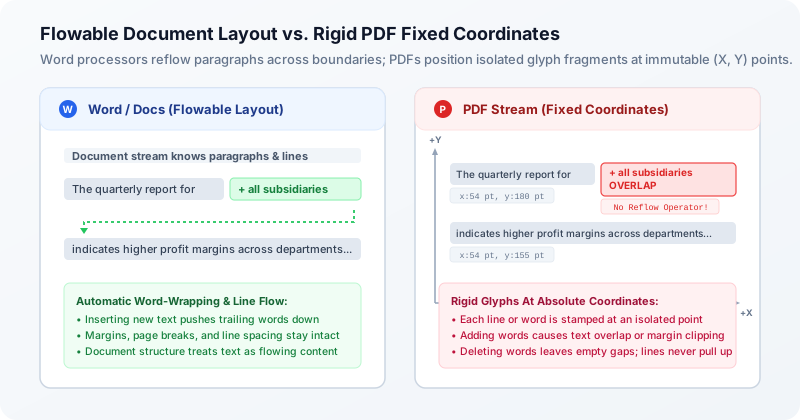
Created by Adobe in 1993 and based on the PostScript page description language, the Portable Document Format (PDF) was engineered to solve one specific problem: visual fidelity. Before PDF, sending a document created in WordPerfect or Microsoft Word to a colleague with a different computer, different operating system, or different installed fonts almost guaranteed that the layout would break. Lines would wrap differently, tables would shift, and pages would overflow.
PDF solved this by turning the document into a set of precise drawing instructions. When an application exports a PDF, it stops thinking about "paragraphs" and "sentences." Instead, it translates every word, curve, and image into absolute drawing commands stamped onto a coordinate grid. In effect, the PDF file tells the viewing application: "Move the virtual pen to point (54, 720), select Font Resource F1 at 12 points, and draw glyphs 81, 97, 118, 105, 108, 111."
Fixed Coordinate Geometry: How PDFs Actually Store Text
To see why modifying text is so technically demanding, consider what the underlying PDF content stream looks like. In a standard PDF conforming to ISO 32000-1, each page contains a /Contents stream of decompressed bytecode operators. There is no logical paragraph node or flowing sentence element. Instead, text is positioned using operators like BT (Begin Text), ET (End Text), Tm (Text Matrix), Td (Text Displacement), and Tj / TJ (Show Text).
Here is an actual snippet of what a simple heading looks like inside a PDF content stream:
BT
/F1 14 Tf
54.0 720.0 Td
(Invoice Statement #10492) Tj
0 -24.0 Td
(Total Amount Due: $1,250.00) Tj
ET- BT / ET: Boundaries declaring a raw text object.
- /F1 14 Tf: Selects font resource F1 scaled to 14 points.
- 54.0 720.0 Td: Displaces the virtual drawing pen to absolute point (X=54, Y=720).
- (Invoice Statement #10492) Tj: Renders the exact literal character string.
- 0 -24.0 Td: Displaces the pen 24 points downward to paint the second line independently.
Notice two crucial details about this stream: first, the coordinate origin (0, 0) in standard PDF user space is at the bottom-left corner of the page, with positive Y extending upwards. By contrast, web browsers and operating system GUI frameworks place (0, 0) at the top-left, with positive Y extending downwards. Every mouse click inside an editor requires a coordinate matrix transformation to align screen pixels with 72 DPI PDF user points.
Second, notice that the second line ("Total Amount Due...") is not positioned automatically by a line-break rule. It is placed at an explicit displacement (0 -24.0 Td) relative to the line above. If you edit the first line to add ten more words, the PDF interpreter has no mechanism to push the second line down. The lengthened first line simply collides with the second line or runs right off the edge of the sheet.
The Font Subsetting Dilemma: Why You Cannot Just Type Any Letter
Even when a PDF editor successfully locates the text coordinates, it immediately confronts another major hurdle: font subsetting. When you type a new word in a word processor, the operating system looks up the characters in your system font library (such as Helvetica, Arial, or Calibri). Because standard TrueType or OpenType font files contain hundreds or thousands of glyphs covering multiple languages, embedding the entire font file in a PDF would inflate a 20 KB document to 2 MB or more.
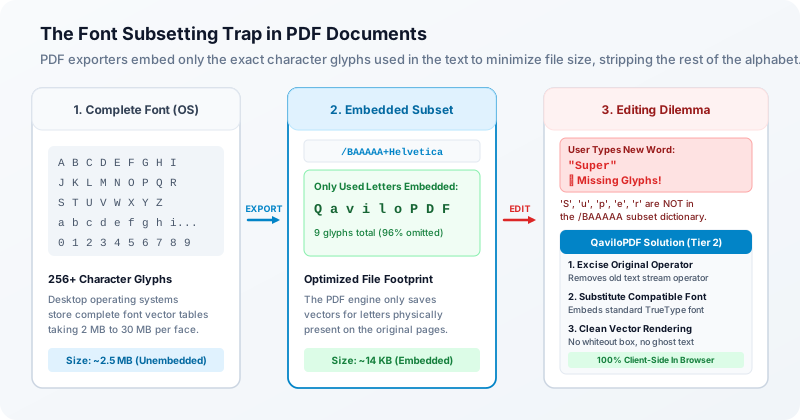
To keep documents lightweight, PDF creation tools perform "font subsetting." If your document only uses the letters in the word "Invoice," the PDF exporter embeds a miniature custom font dictionary containing only those seven character vectors. It gives this font an arbitrary six-letter prefix, such as /BAAAAA+Helvetica.
Now consider what happens when you open that PDF in an editor and attempt to replace "Invoice" with "Receipt":
- Missing Glyphs in the Font Dictionary: The embedded /BAAAAA+Helvetica subset contains glyphs for I, n, v, o, i, c, e. It does not contain glyphs for R, p, or t. If an editor tries to write those characters using the original font, the PDF viewer renders blank spaces, missing-glyph boxes (.notdef rectangles), or fallback substitution symbols.
- Custom Character Maps (ToUnicode CMaps): In many subsetted fonts, the character code "1" might not represent the number 1; it might be mapped internally to the letter "A" or an arbitrary glyph ID. Replacing raw bytes without rebuilding the CMap table garbles the text entirely.
- Missing Full-Alphabet System Access: In a web browser environment, security sandboxes prevent web applications from arbitrarily scanning and reading font files installed on your local operating system.
Three Tiers of PDF Editing: Direct Stream, Structural Excision, and Visual Masking
Because PDF files vary widely in their internal encoding—ranging from clean standard WinAnsi streams to heavily compressed, subsetted documents—a robust editor cannot rely on a single editing technique. In QaviloPDF Edit PDF, existing-text modifications are handled by an intelligent three-tier execution hierarchy implemented entirely in client-side TypeScript:
| Editing Tier | Trigger Condition | Internal Mechanism | Visual & Search Fidelity | Ghost Text Risk |
|---|---|---|---|---|
| Tier 1: Direct Content Stream Replacement | Standard 14 font (Helvetica, Times, Courier) or complete WinAnsi encoding where new text maps to existing CMap. | Decompresses the /Contents stream with pako/FlateDecode, locates string token, updates literal in place. | 100% identical original font weight, baseline, and tracking. Searchable and selectable. | Zero (original text is physically replaced in byte stream). |
| Tier 2: Safe Structural Operator Excision | Embedded subset font (e.g., /ABCDEF+Calibri) or replacement text requiring glyphs outside original subset. | Excises original text operator from decompressed stream entirely, then re-emits new text at exact coordinates using embedded TrueType/Standard font. | Clean vector rendering matching original point size and color. No whiteout box used. | Zero (original operator completely removed from stream; no duplicate text layer). |
| Tier 3: Visual Compensation Fallback | Complex non-standard stream tokenization, diagonal rotated text, or user-selected visual override. | Computes tight oriented bounding box (OBB) of original text, masks the region with an opaque background fill (white for standard visual override), and draws overlay text. | Matches visible appearance for printing and viewing; maintains document readability. | Present in bytecode (visual mask covers text, but underlying operator is not expunged; not designed for confidential data redaction). |
Our local fixture tests confirmed that Tier 1 and Tier 2 editing keep exports clean of duplicate layers: when replacing wording in standard or subset documents, the old string is absent from the extracted text stream. For a hands-on UI walkthrough of replacing lines without colliding with neighbors, follow our practical guide on how to edit existing PDF text without changing layout.
The Reflow Problem: Word Collisions and Gaping Voids
The third major challenge in PDF editing is text length disparity. In a word processor, if you replace the word "due" with "overdue by thirty calendar days," the word processor automatically moves the rest of the sentence to the right, breaks the line at the right margin, pushes the next line down, and if necessary creates a new page.
In a PDF, because every line is drawn at an independent vertical coordinate, the PDF engine has no knowledge of how lines relate to one another. Here is what happens in practice during text edits:
- Shortening Text ("Payment Terms: Net 30 Days" ➔ "Due Now"): The replacement text fits easily within the original bounding box. However, because subsequent text does not "pull up" or shift left, an empty whitespace gap remains where the deleted characters used to reside.
- Lengthening Text ("Total: $10" ➔ "Total: $1,250,000.00 USD"): The replacement text extends horizontally along the baseline. If other content sits to the right (such as a table border, column divider, or adjacent paragraph), the new text collides and overlaps directly on top of it.
- Multi-Line Paragraph Reflow: True paragraph reflow requires knowing the author’s intended margins, line spacing (leading), hyphenation dictionary, and column flow. Without this metadata, an editor cannot automatically reflow text across lines without risking unpredictable document corruption.
Scanned Documents: Why You Cannot Edit Pixels Without OCR
A very common user complaint is: "I clicked on a word in my PDF, but the editor won’t let me select or edit it at all." In many of these cases, the file is not a text-based digital PDF—it is a scanned document.
When a physical piece of paper is fed through a scanner or photographed with a smartphone, the resulting PDF does not contain any font definitions, characters, or text operators. Under the hood, the PDF contains a single /XObject of /Subtype /Image—a grid of colored pixels, like a JPEG or PNG wrapped in a PDF envelope.
| Document Type | Source / Creation Method | Internal Architecture | Text Editability |
|---|---|---|---|
| Digital Native PDF | Exported from Word, InDesign, Google Docs, or Chrome | Contains real vector character glyphs and /Font resource dictionaries | Directly editable via content-stream replacement (Tier 1 or Tier 2) |
| Scanned Raster PDF | Created by a flatbed scanner, office copier, or smartphone camera | Contains only a photographic bitmap image (/XObject /Subtype /Image) | Zero text operators; requires OCR to create a selectable text layer first |
Our engine tests confirmed that running text extraction on a scanned PDF returns exactly 0 text items. Attempting to modify native text streams in a pure image is impossible because there are no character operators in the file. Running the document through an Optical Character Recognition tool (such as QaviloPDF’s client-side OCR PDF tool) analyzes pixel patterns and embeds an invisible, searchable, copyable text layer aligned over the original scan—while any visible wording change on the scanned page itself is done using whiteout and replacement text overlays in Edit PDF.
Practical Decision Guide: Choosing the Right Editing Workflow
Given the technical mechanics of PDF files, how should you approach document editing? The key is choosing the workflow designed for your specific scope of change using dedicated utilities like QaviloPDF Edit PDF or Redact PDF:
| Editing Scenario | Recommended Tool | Why This Is the Best Approach |
|---|---|---|
| Minor typo correction, date change, price update, or single-line change | QaviloPDF In-Browser Edit PDF | Instant, zero software installation, preserves unedited vector assets and page dimensions, and keeps documents entirely private on your device. |
| Blacking out sensitive personal details, account numbers, or private notes | QaviloPDF Redact PDF | Defaults to Full Document Flattening (200 DPI rasterization across all pages with burned-in redaction bars), with an optional Selective Sanitization mode for redacted pages only, so hidden text operators cannot be copied or extracted from redacted areas. |
| Adding a signature, notary stamp, company logo, or text callout | QaviloPDF In-Browser Edit PDF (Add Text / Image / Draw) | Inserts new vector or raster elements onto the coordinate space without touching existing content streams. |
| Making a scanned contract selectable/searchable (or overlaying updated details) | QaviloPDF OCR PDF (plus Edit PDF overlays when visible edits are needed) | OCR embeds an invisible searchable and copyable text layer over the scan; Edit PDF adds whiteout/replacement overlays over printed regions. |
| Major rewriting, multi-paragraph restructuring, re-flowing multiple pages | Word Processor (or Word-to-PDF conversion after revising source) | Extensive content restructuring requires a genuine flowable layout engine with automatic pagination and line wrapping. |
Ready to test this workflow on your document?
Fix typos, update dates, insert annotations, or modify existing PDF text directly inside your browser. No files leave your device, no account required, and zero cloud uploads.
Frequently Asked Questions
Why does my edited PDF show the old text when I copy and paste?
This occurs in editors that use primitive visual overlays: they draw a white box over the old text and print new text on top without removing the underlying text operator. When a reader copies text or searches the document (Ctrl+F), the PDF viewer extracts both the old and new words. QaviloPDF prevents this by genuinely replacing the string in the content stream (Tier 1) or structurally excising the old operator entirely (Tier 2).
Can I change the font of existing text in a PDF?
When editing existing text in QaviloPDF’s Edit Text mode, there is no manual font picker: QaviloPDF automatically infers the nearest PDF Standard 14 font family (Helvetica, Times Roman, or Courier—referenced as built-in PDF Type 1 fonts rather than embedded font binaries) for WinAnsi text. If your replacement contains Unicode characters outside WinAnsi, QaviloPDF automatically embeds LiberationSans-Regular.ttf via fontkit so characters render reliably. To manually pick a font (Helvetica, Times Roman, or Courier), size, and color for newly inserted labels or overlays, switch to Add Text.
Why does replacing a word sometimes cause it to overlap the next word?
PDF files do not have automatic word wrapping. Each line and word segment has fixed coordinates. If your replacement text is wider than the original string, it extends across the page and will overlap whatever sits to its right. To avoid overlap, shorten your wording or slightly decrease the font size in the toolbar.
Why can’t I select or edit any text in my scanned PDF?
Scanned documents are digital photographs composed of pixel grids, not text characters. Because there are no text operators in the PDF content stream, an editor has nothing to select. Process the file through QaviloPDF’s OCR PDF tool to add a searchable, copyable invisible text layer over the scan, or use whiteout and text overlays in Edit PDF to update visible wording on the page.
Does editing a PDF remove digital signatures?
Yes. Cryptographic digital signatures calculate a mathematical hash of the entire file byte stream. Any modification to the content stream—even fixing a single typo—invalidates the mathematical checksum, causing PDF viewers to flag the signature as altered or invalid.
Is editing or covering text in a PDF the same as redacting sensitive information?
No. Visual masking in standard editing draws an opaque fill (solid white by default) over text without erasing the original stream operators underneath. When removing sensitive data permanently, use QaviloPDF Redact PDF, which defaults to Full Document Flattening at 200 DPI across all pages (with an optional Selective Sanitization mode for redacted pages only) with burned-in black boxes so no copyable text remains underneath on redacted pages.
Related Reading & Guides
How to Edit Existing Text in a PDF Without Changing the Layout
Need to fix a typo, update a date, or change a price in a PDF without shifting nearby paragraphs or breaking your alignment? Follow this practical step-by-step workflow to edit existing PDF text in your browser, preserve page geometry, and verify the exported file.
articleHow to Compress a PDF Without Losing Readability
Need to shrink a PDF for Gmail, Outlook, or an upload portal without turning text blurry? Learn the six technical causes of PDF bloat, exact email attachment ceilings accounting for MIME encoding overhead, and how to compress files privately in your browser.
articleHow to Merge PDF Files Privately and in the Correct Order
Need to combine multiple PDF documents into a single organized packet without sending confidential files to a remote cloud server? Learn how in-browser PDF merging works, how to arrange files in the correct sequence, what happens to vector typography and forms, and how to verify your final combined document.
articleHow to Split a PDF or Extract Specific Pages Without Losing Important Content
Need to isolate a single chapter, pull signed contract pages, or divide a multi-page report into manageable files? Learn the critical difference between splitting and extracting, avoid the physical index trap, understand the limits of virtual printing, and see how bookmarks, hyperlinks, and form fields behave during extraction.