How to Compress a PDF Without Losing Readability
Need to shrink a PDF for Gmail, Outlook, or an upload portal without turning text blurry? Learn the six technical causes of PDF bloat, exact email attachment ceilings accounting for MIME encoding overhead, and how to compress files privately in your browser.
Why Is Your PDF File So Large? 6 Root Causes
Almost every professional has encountered the frustrating rejection message: "Attachment exceeds server size restrictions" or "File exceeds the upload limit." The natural instinct is to run the file through an aggressive online compressor, only to discover that critical contract terms have become blurry or architectural diagrams have lost crisp line detail.
To shrink a PDF effectively without harming legibility, start by identifying what actually consumes bytes inside the container. Under the ISO 32000-1 PDF specification, a file is a structured tree of indirect objects. Oversized PDFs almost always trace back to six structural causes:
- High-Resolution Embedded Raster Images: Smartphone cameras and desktop scanners frequently save photos at 300 to 600 DPI or multi-megapixel dimensions far exceeding screen viewing needs, consuming several megabytes per image.
- Full-Page Scanned Images Without Compression Tuning: A scanned packet saved without monochrome encoding or downsampling stores each page as a large bitmap wrapper—turning a 20-page lease into 20 full-page photographs.
- Duplicate Embedded Assets & Repeated XObjects: Slide decks, invoices, and merged packets (Merge PDF) often repeat identical company logos, headers, or backgrounds as separate unshared image streams rather than referencing one shared Form XObject.
- Uncompressed or Inefficiently Encoded Streams: Exporting engines that emit raw uncompressed content streams or skip Flate (zlib) deflation leave repetitive text drawing operators and vector coordinates uncompacted.
- Suboptimal Font Embedding: Embedding complete multi-megabyte font tables or duplicating font subsets across merged sections adds permanent overhead even when pages contain modest text.
- Heavy Vector Paths, Hidden CAD Layers & Unused Metadata: Architectural CAD drawings with thousands of layered polyline primitives, Print-ready ICC color profiles, embedded page thumbnails, and XML/XMP revision history all add persistent byte weight.
Lossless vs. Lossy PDF Compression
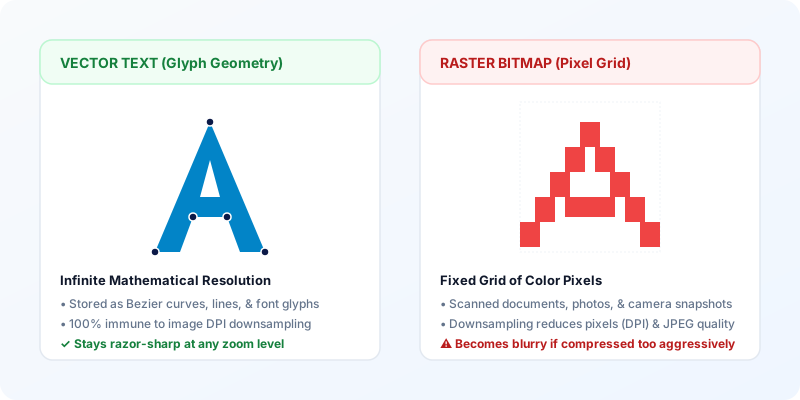
The single most widespread misconception about PDF compression is that making a file smaller automatically degrades text sharpness. In reality, modern document optimization relies on two fundamentally different compression techniques: lossless structural optimization and lossy media resampling.
Lossless Optimization: Structural Reorganization Without Resampling
Lossless compression removes redundant binary data and reorganizes object streams without altering a single pixel or character glyph. When the file is decompressed by a PDF viewer, the reconstructed document is bit-for-bit identical to the original.
- Flate Stream Deflation: Content streams containing layout coordinates and drawing operators are compressed using standard zlib Deflate (level 9), exactly like creating a ZIP archive.
- Duplicate Image Deduplication: When a company logo or letterhead banner appears across 50 pages, legacy exporters often duplicate the image binary 50 times. Lossless deduplication detects identical byte streams and re-points all pages to a single canonical object reference.
- Metadata Preservation (Not Sanitization): Compression focuses strictly on byte-size efficiency and intentionally preserves document catalog metadata (/Metadata), page thumbnails (/Thumb), and application dictionaries (/PieceInfo). Compressing a PDF is not metadata sanitization—to strip hidden metadata and confidential text permanently, use QaviloPDF Redact PDF.
Lossy Optimization: Controlled Downsampling and Recompression
Lossy compression specifically targets embedded raster images (photographs and scanned bitmaps). It achieves massive file size reductions by discarding high-frequency visual data that the human eye cannot perceive under normal reading conditions.
- Spatial Downsampling: If a full-page photo is embedded at 600 DPI, downsampling it to 150 DPI reduces the total pixel grid from 33 megapixels to approximately 2 megapixels—a 94% reduction in raw pixel count before encoding.
- JPEG Quantization: Re-encoding DCT streams using fine-tuned luminance and chrominance quantization tables (typically 70% to 85% quality) dramatically reduces byte size with imperceptible artifacting.
How to Compress a PDF Using QaviloPDF
Most online PDF utilities require uploading your documents to remote cloud servers, where they enter temporary processing queues. The QaviloPDF Compress PDF tool executes the entire optimization pipeline locally within your web browser using client-side JavaScript and dedicated background Web Workers. Your documents never travel over the network, ensuring complete confidentiality for financial, medical, and legal records.
Step 1: Select Your Document
Navigate to the QaviloPDF Compress PDF tool. Drag and drop your file into the secure dropzone, or click "Select PDF Document". QaviloPDF supports files up to 50 MB directly in-browser. The tool immediately parses the document structure locally, inspecting image count, stream filters, and page dimensions.
Step 2: Choose Your Compression Profile
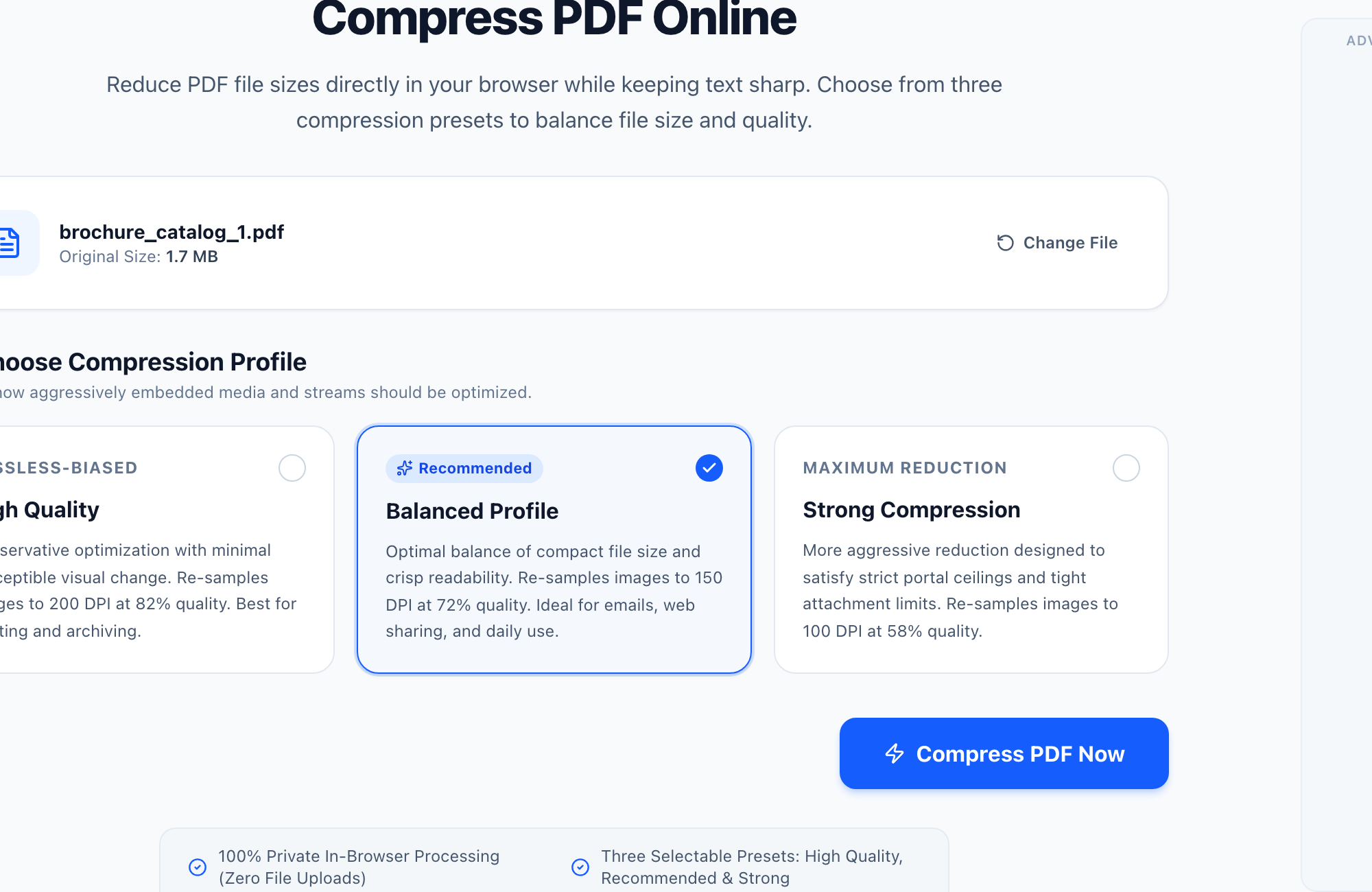
Select one of three engineered compression presets tailored to specific document use cases: High Quality, Balanced Profile (Recommended), or Strong Compression.
Step 3: Process the Document Locally
Click "Compress PDF Now". A background Web Worker unpacks stream dictionaries, deduplicates identical image assets, downsamples eligible bitmap images, applies Flate deflation to eligible streams, and saves an optimized PDF with real-time progress reporting.
Step 4: Inspect Results and Download
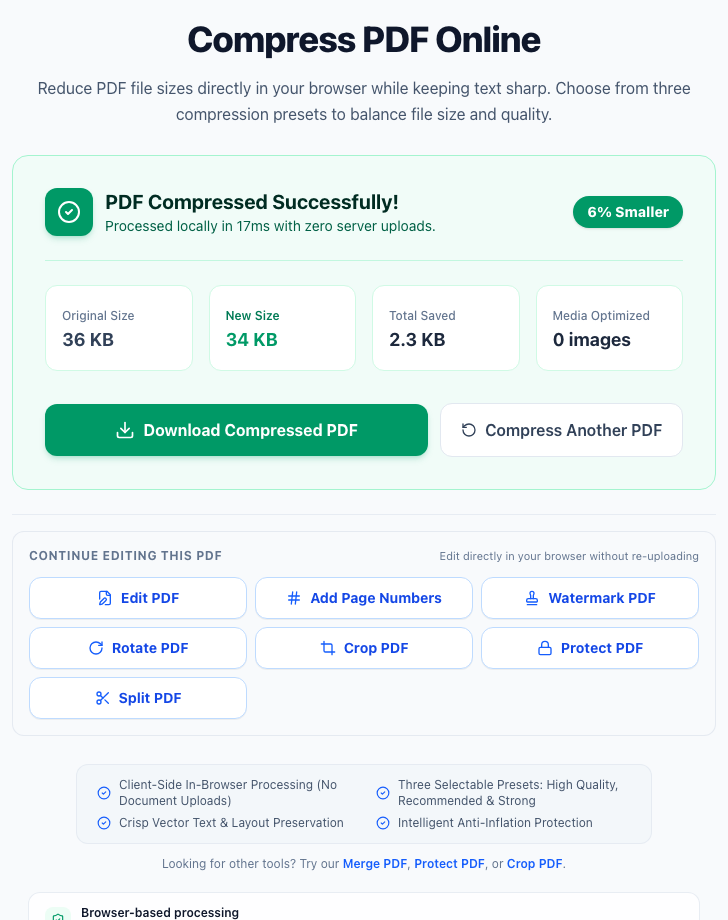
Once processing finishes, QaviloPDF displays an audit summary detailing original size, compressed size, total bytes saved, and percentage reduction. Click "Download Compressed PDF" to save the output while your original file stays untouched locally.
Which Compression Setting Should You Choose?
Choosing the correct profile depends entirely on how the document will be consumed. A presentation intended for projection or commercial print requires higher image resolution than an invoice packet intended for an e-filing portal.
| Profile Name | Target DPI | JPEG Quality | Max Dimension | Best Use Case | Expected Visual Impact |
|---|---|---|---|---|---|
| High Quality (Lossless-Biased) | 200 DPI | 82% | 2,400 px | Archival storage, legal exhibits, professional portfolios, and documents intended for print. | Virtually indistinguishable from the original even on Retina and 4K displays. |
| Balanced Profile (Recommended) | 150 DPI | 72% | 1,600 px | Email attachments, daily office sharing, invoices, reports, and web publication. | Text is 100% crisp; photos display clean detail with minor smoothing under high magnification. |
| Strong Compression (Maximum Reduction) | 100 DPI | 58% | 1,100 px | Strict portal ceilings (<2MB or <1MB limits), low-bandwidth mobile distribution. | Photos and scanned textures exhibit mild JPEG compression artifacts, but text remains fully readable. |
Real PDF Compression Examples
Rather than quoting theoretical claims, we benchmarked QaviloPDF’s client-side compression engine on four test documents representing common structural archetypes: an image-heavy product catalog, a mixed newsletter, a scanned document, and a text-heavy contract.
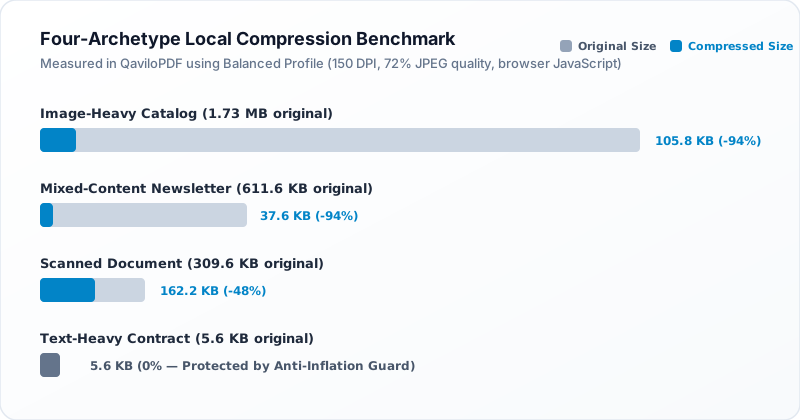
| Document Archetype | Original Size | High Profile | Recommended Profile | Strong Profile | Key Structural Factor |
|---|---|---|---|---|---|
| Image-Heavy Catalog (brochure_catalog_1.pdf) | 1,773.8 KB (1.73 MB) | 134.1 KB (-92%) | 105.8 KB (-94%) | 90.7 KB (-95%) | 4 high-DPI full-color product photos resampled and recompressed with optimal JPEG tables. |
| Mixed-Content Newsletter (mixed_newsletter_1.pdf) | 611.6 KB | 47.3 KB (-92%) | 37.6 KB (-94%) | 32.5 KB (-95%) | Vector typography and 2-column layout preserved bit-for-bit; 2 embedded header photos downsampled. |
| Scanned Document (scanned_doc_1.pdf) | 309.6 KB | 212.1 KB (-32%) | 162.2 KB (-48%) | 133.0 KB (-57%) | Full-page grayscale scan resampled from 300 DPI to 150 DPI. Text remains clearly legible. |
| Text-Heavy Contract (text_heavy_1.pdf) | 5.6 KB | 5.6 KB (0%) | 5.6 KB (0%) | 5.6 KB (0%) | Already optimized vector text streams. Anti-Inflation Guard prevented file size bloating. |
In our four-document local benchmark (with sizes reported in binary kilobytes where 1 KB = 1,024 bytes, executed against QaviloPDF’s compression engine on synthetic test PDFs), the image-heavy catalog dropped 94% on Recommended and the mixed newsletter dropped 94%. Conversely, the already pre-compressed 5.6 KB text contract showed 0% change because the Anti-Inflation Guard preserved the original compact byte stream. Note that newly exported PDFs containing bloated uncompressed content streams or unshared duplicate XObjects—such as the 6-page vector diagnostic tested in our Free PDF Compressor comparison—can still shrink 40% to 50% via lossless stream deflation alone.
Email Attachment Limits (Gmail, Outlook, Exchange & Apple Mail)
Email servers remain the number-one reason people search for PDF compression. Even when a mailbox advertises a 20 MB or 25 MB attachment limit, MIME Base64 transport encoding expands binary file attachments by roughly 33% on the wire—meaning a 20 MB PDF inflates to roughly 26.7 MB inside the transmitted SMTP message.
| Email Provider | Published Limit | Practical Safe PDF Target | Fallback Behavior When Exceeded |
|---|---|---|---|
| Gmail (Google Workspace) | 25 MB total message size | 18 MB or smaller | Automatically converts attachments over 25 MB into Google Drive links. |
| Outlook.com (Personal) | 20–25 MB attachment ceiling | 15–18 MB or smaller | Blocks direct send or prompts OneDrive link sharing. |
| Exchange / Microsoft 365 | 10–35 MB admin-configurable (up to 150 MB tenant max) | 9–15 MB for external recipients | Receiving corporate gateways frequently enforce stricter 10 MB inbound rules. |
| Apple Mail / iCloud Mail | 20 MB standard SMTP attachment | 15 MB direct (or Mail Drop up to 5 GB) | Mail Drop hosts oversized files on iCloud temporarily for 30 days. |
Two-Step Email Fix: First run the file through QaviloPDF Compress PDF using Recommended (150 DPI) or Strong (100 DPI) if image-heavy. If a multi-chapter scan or portfolio still exceeds 18 MB, divide it cleanly into part 1 and part 2 using Split PDF instead of destroying legibility with extreme compression.
How to Check PDF Quality After Compression
Before submitting a compressed document to an employer, court clerk, or client, spend 60 seconds performing these five simple verification checks in your PDF reader:
- Zoom In to 300% on Body Text: Inspect fine text elements such as footnotes, numbers, and superscript citations. If the text was originally vector fonts, it will remain razor-sharp with smooth edges regardless of zoom.
- Inspect Small Diagram Labels and Graphs: In technical blueprints and financial charts, check whether numeric labels inside bar charts or axis legends are legible without blur.
- Perform the Ctrl+F / Cmd+F Text Search Test: Press Ctrl+F (or Cmd+F on Mac) and search for a common word in the document. Verify that text selection and searching remain fully functional. If search fails, the document was either a flat scan or had its font encodings corrupted by an inferior converter.
- Verify Page Count and Bookmarks: Scroll through the document to confirm that total page count matches the original and that the navigation outline (bookmarks) remains clickable.
- Check Interactive Form Fields and Hyperlinks: If the document included fillable form fields or external web links, click them to ensure interactive AcroForm properties survived compression.
Why Some PDFs Cannot Be Compressed Much Further
Users occasionally load a PDF into a compression tool and find that the output size barely changes, or that the tool reports: "Document is already well-optimized." This is not an engine malfunction; it is a sign of an efficiently constructed PDF.
There are three primary reasons why a document cannot be compressed further:
- Pre-Optimized Web PDFs: Documents exported directly from modern web publishing systems (such as Google Chrome print-to-PDF or InDesign Web Presets) already apply 150 DPI downsampling and zlib stream deflation during export. There is simply no redundant data left to strip.
- Pure Vector Art & Architectural CAD Drawings: Complex engineering blueprints composed of tens of thousands of mathematical line paths, curves, and hatching patterns contain zero raster images. Because vector coordinates cannot be lossily quantized without distorting geometric measurements, they can only be compressed via standard lossless zlib.
- Already Heavily Compressed Scans: If a scanned PDF was previously compressed with aggressive lossy algorithms (such as JBIG2 or low-quality JPEG), attempting to re-compress it will either yield negligible savings or trigger compression artifact degradation.
If a multi-page document has reached its minimum compression threshold but still exceeds email attachment limits or filing portal caps, dividing the document into smaller chapters is often the cleanest solution. Learn how to extract target sections without losing bookmarks or form fields in our companion guide on how to split a PDF or extract specific page ranges. If you are evaluating how different utilities handle file-size limits, presets, and browser privacy, see our comparison of the best free PDF compressors.
Ready to test this workflow on your document?
Reduce PDF file size locally on your device with client-side JavaScript. No account required, zero remote uploads, and instant private processing.
Frequently Asked Questions
Will compressing a PDF make the text blurry or unreadable?
No, provided your document uses true vector text. Vector fonts are defined by mathematical outline formulas, not pixel grids, so image downsampling does not touch them. However, if your document is a scanned image of paper without OCR, the text is part of a bitmap photograph and will soften if aggressive compression is applied.
Why didn’t my PDF shrink in size after compression?
If your document is composed entirely of vector text and line art, or if its embedded images were already compressed to 150 DPI or lower, there is very little redundant data to remove. QaviloPDF includes an automated Anti-Inflation Guard that delivers the original file rather than risking quality degradation or file size inflation.
Is it safe to compress confidential legal, financial, or medical PDFs?
With QaviloPDF, yes. Unlike cloud-based online PDF converters that require uploading your files to remote servers, QaviloPDF processes your documents entirely on your computer using client-side JavaScript in isolated Web Workers. Zero bytes leave your device.
Can I compress a password-protected or cryptographically signed PDF?
Password-protected PDFs encrypted with standard AES-256 or RC4 encryption can be decrypted first with QaviloPDF Unlock PDF using your password (AES-128 encrypted files are not supported by Unlock PDF). Cryptographically signed PDFs (such as DocuSign or Adobe Sign agreements) cannot be compressed, because modifying any byte invalidates the certificate hash.
What is the maximum file size supported for in-browser compression?
QaviloPDF supports files up to 50 MB directly in your browser. Because processing occurs in memory via Web Workers, performance depends on your device’s available RAM and CPU speed.
Related Reading & Guides
How to Merge PDF Files Privately and in the Correct Order
Need to combine multiple PDF documents into a single organized packet without sending confidential files to a remote cloud server? Learn how in-browser PDF merging works, how to arrange files in the correct sequence, what happens to vector typography and forms, and how to verify your final combined document.
articleHow to Split a PDF or Extract Specific Pages Without Losing Important Content
Need to isolate a single chapter, pull signed contract pages, or divide a multi-page report into manageable files? Learn the critical difference between splitting and extracting, avoid the physical index trap, understand the limits of virtual printing, and see how bookmarks, hyperlinks, and form fields behave during extraction.
comparisonBest Free PDF Compressors
An evidence-based comparison of eight free PDF compressors—examining lossless stream optimization versus image downsampling, how text and vectors are preserved, where free-tier paywalls apply, and reproducible QaviloPDF compression measurements across six document types.