
How to Split a PDF or Extract Specific Pages Without Losing Important Content
Need to isolate a single chapter, pull signed contract pages, or divide a multi-page report into manageable files? Learn the critical difference between splitting and extracting, avoid the physical index trap, understand the limits of virtual printing, and see how bookmarks, hyperlinks, and form fields behave during extraction.
Splitting vs. Extracting: Choosing the Right Workflow
While the terms "splitting" and "extracting" are frequently used interchangeably, in document processing they refer to two distinct output structures. Choosing the wrong workflow can result in unwanted ZIP archives or extra manual steps to recombine files.
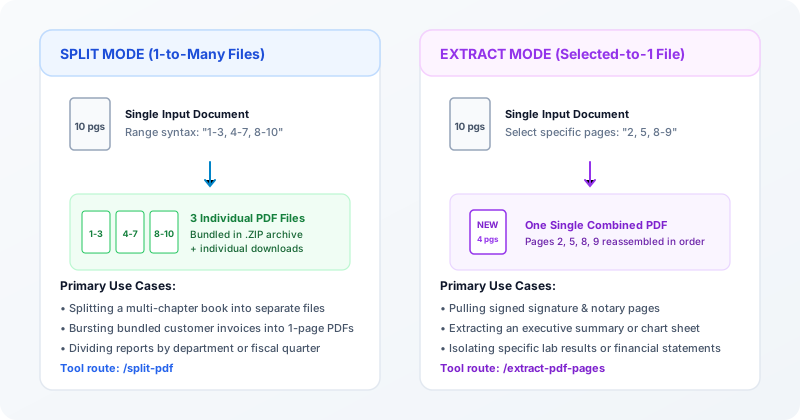
Here is how the workflows differ in practice:
| Workflow Mode | Input Document | User Action | Output Result | Typical Use Case |
|---|---|---|---|---|
| Split by Ranges | 1 Document (e.g. 50 pgs) | Specify partitions (e.g. "1-10, 11-25, 26-50") | Multiple PDFs (3 files) bundled in a ZIP archive | Archiving book chapters, quarterly reports, department packets |
| Split Every Page | 1 Document (e.g. 20 pgs) | Choose "Split Every Page" mode | 20 separate 1-page PDF files bundled in a ZIP archive | Batch-bursting payroll stubs, customer invoices, shipping manifests |
| Extract Pages | 1 Document (e.g. 50 pgs) | Select specific pages (e.g. "3, 7, 14-16, 42") | Exactly 1 new cohesive PDF containing only selected pages | Pulling signed signature pages, notary acknowledgments, executive summaries |
The Physical Index vs. Printed Page Number Trap
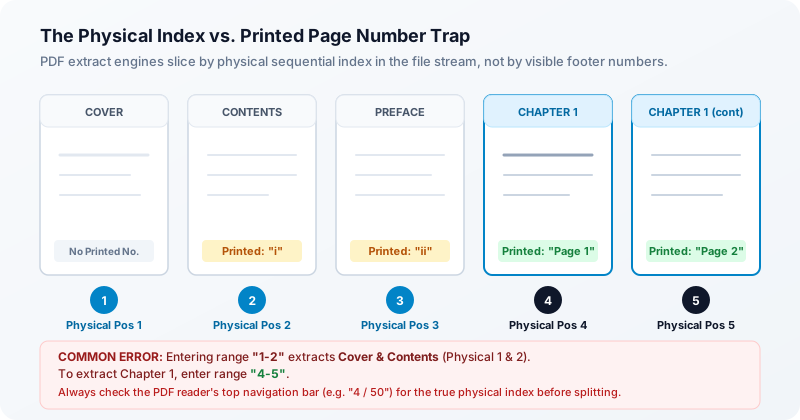
A common source of confusion when extracting pages from books, legal filings, and formal reports is entering a page number from the printed footer and receiving completely different content. This discrepancy occurs because of the difference between physical page stream indices and logical page numbers.
How PDF Page Architecture Works Under ISO 32000-1
Under the ISO 32000-1 PDF standard, pages in a document are organized as an ordered tree of /Page dictionary objects referenced by the root /Pages catalog. PDF engines access these pages strictly by their zero-based or 1-based sequential position in the stream: page 1 is the first physical page object encountered, page 2 is the second, and so on.
Printed page numbers, by contrast, are either static text drawn on the page canvas or logical string labels defined in an optional /PageLabels dictionary. Formal publications commonly use Roman numerals for front matter before resetting page numbering for Chapter 1:
- Physical Sheet 1: Front Cover (No printed number)
- Physical Sheet 2: Executive Summary (Printed as "Page i")
- Physical Sheet 3: Table of Contents & Disclosures (Printed as "Page ii")
- Physical Sheet 4: Main Agreement Introduction (Printed as "Page 1")
- Physical Sheet 5: Terms and Conditions (Printed as "Page 2")
Before typing a range, look at the navigation fraction in your PDF viewer toolbar (such as "4 / 50"). That number indicates the true physical index required by the extraction engine.
Why "Print to PDF" Is the Wrong Tool for Digital Workflows
When people need to pull a few pages from a document, a common shortcut is opening the file in a browser, choosing Print (Ctrl+P or Cmd+P), selecting "Save as PDF" or "Microsoft Print to PDF," and typing a page range. While this works well enough if you simply plan to print the resulting pages onto paper, using a print driver as a digital extraction tool introduces notable technical trade-offs.
Printing is a spooling and rendering pipeline designed for physical output rather than object-level document editing. The print driver interprets the PDF into printer graphics commands and generates a replacement document. In digital workflows, this can cause several limitations:
- Loss of Fillable Form Interactivity: Interactive form fields (AcroForms) and input widgets are converted into static background graphics. Form fields can no longer be edited, filled, or submitted programmatically.
- Removal of Bookmarks and Document Outlines: The document outline tree (/Outlines) is stripped because printer drivers have no concept of an interactive navigation sidebar.
- Inactive Hyperlinks: External web links (URI actions) and internal jump links (GoTo actions) often lose their interactive annotation boundaries, turning clickable references into plain text.
- Font Re-encoding and File Size Inflation: Depending on printer driver settings, fonts may be converted to outlines or re-encoded with generic character maps. In some documents, this impairs searchability (Ctrl+F) and can significantly increase output file size.
Step-by-Step Guide: Splitting and Extracting with QaviloPDF
QaviloPDF processes documents entirely within your web browser using client-side JavaScript (pdf-lib and JSZip for page copying and ZIP packaging, alongside a PDF.js browser worker for preview thumbnails). Files up to 50 MB are read directly into local browser memory—no document data is uploaded to remote servers.
Step 1: Open the Tool and Select Your File
Open QaviloPDF’s Split PDF tool (or go straight to extract-only workflow in Extract PDF Pages). Drag and drop any PDF up to 50 MB into the drop zone or click "Select PDF File." The document structure parses locally and a thumbnail grid displays automatically. If you are weighing browser-based utilities against cloud PDF suites, explore our comparison of the best free online PDF tools.
Step 2: Choose Your Operation Mode
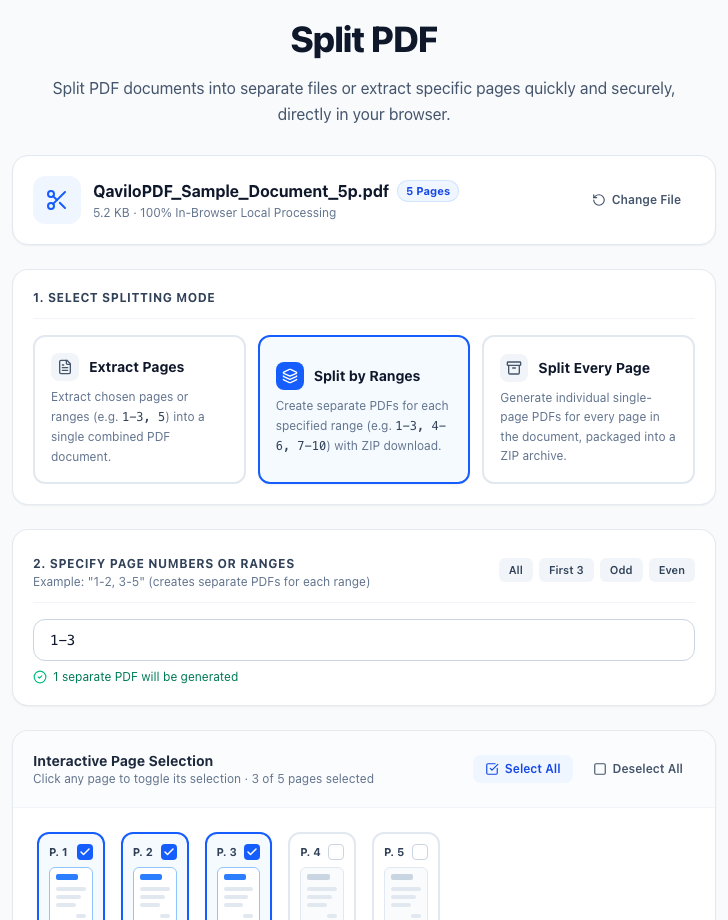
Select the mode card that matches your desired output:
- Extract Pages: Select individual pages or custom ranges (e.g.
1-3, 7, 12-15) to combine into a single PDF. You can also toggle page thumbnails visually in the preview grid. - Split by Ranges: Define multiple segment boundaries (e.g.
1-10, 11-20, 21-35). Each range exports as its own separate PDF file bundled alongside a ZIP download. - Split Every Page: Burst every page into an independent 1-page PDF packaged inside a ZIP archive, ideal for invoices or receipts.
Step 3: Specify Your Page Range
You can select pages visually by clicking thumbnails in the grid or by typing comma-separated ranges into the range input box. The parser supports standard range notations:
| Range Input Example | Target Document Total | Extracted Output Result |
|---|---|---|
| 1-5 | 20 pages | Pages 1, 2, 3, 4, and 5 |
| 1, 3, 5, 7 | 10 pages | Odd-numbered pages only |
| 1-4, 8, 12-15 | 30 pages | Pages 1-4, page 8, and pages 12-15 |
| 6-10, 1-5 | 10 pages | Extracts pages 6-10 followed by pages 1-5 in specified order |
Step 4: Generate and Download Your Files
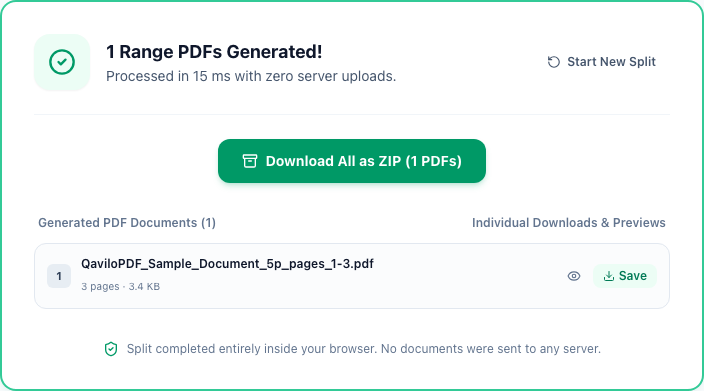
Click "Split PDF" or "Extract Pages." Because object copying executes locally in your browser without round-trip uploads, standard documents process rapidly; single extracts download directly as a .pdf, while multi-part splits offer individual file downloads plus a standard .zip archive.
What Happens to Bookmarks, Links, and Form Fields?
When pages are extracted from a parent PDF into a new child document, some elements transfer directly while others are modified or omitted due to standard PDF document architecture. Understanding these behaviors helps avoid surprises in legal, financial, and compliance workflows.
| Document Element | Preservation Status | Technical Behavior Under ISO 32000-1 | Practical Impact |
|---|---|---|---|
| Page Dimensions & Orientation | Preserved via Direct Copying | MediaBox, CropBox, and page /Rotate angle attributes are copied directly to child page dictionaries. | Landscape spreadsheets and portrait text pages retain their exact layout and orientation. |
| Vector Typography & Fonts | Preserved via Direct Copying | Font programs, character metrics, and /ToUnicode mapping tables in the page /Resources dictionary are transferred without resampling. | Text remains sharp at all zoom levels, searchable, and copy-pasteable in compliant PDF viewers. |
| Embedded Images | Preserved Without Downsampling | Image XObjects are referenced directly in page content streams without lossy recompression. | Photos and technical illustrations retain their original pixel dimensions and color data. |
| External Web Hyperlinks | Preserved | Page annotation dictionaries (/Annots) containing /Action /URI entries remain intact on their respective pages. | Clicking web links in extracted pages opens the target browser URL normally. |
| Internal Jump Links (GoTo) | Conditionally Functional | Links pointing to pages included in the extract remain functional; links pointing to omitted pages cannot resolve their destination. | Cross-references to omitted chapters become inactive because the destination object is not in the child file. |
| Document Bookmarks (/Outlines) | Omitted by Design | Document outline hierarchies live in the root document /Catalog object, not inside individual page dictionaries. | Child documents open with a clean bookmark pane. This prevents broken bookmarks pointing to excluded pages. |
| AcroForm Field Appearances | Visual Appearance Retained | Widget annotation appearance streams (/AP) in page /Annots are preserved, showing entered text and checkboxes. | Existing form text remains visible, but root /AcroForm calculation scripts and multi-page field bindings do not run. |
| Cryptographic Digital Signatures | Invalidated / Stripped | Digital signatures rely on a cryptographic byte-range hash of the entire original document binary. | Modifying or extracting pages alters the byte stream, which invalidates digital signatures. Visible signature stamps remain, but certificate validity is lost. |
Quality Assurance Checklist: Verifying Your Extracted PDF
Before transmitting an extracted PDF to a client, court registry, or official portal, spend a few seconds verifying document integrity against this quality checklist:
- Verify Page Count: Open the file and confirm the total page count matches your intended range (e.g. range 12-15 yields 4 pages).
- Test Text Searchability (Ctrl+F / Cmd+F): Search for a common term on page 1 to verify font encoding and character mapping remain intact.
- Check Mixed Orientations: Verify that landscape sheets and diagrams kept their intended page rotation without clipping.
- Inspect Signatures and Form Data: Confirm that visual signature stamps and filled form entries remain legible.
- Test Clickable Hyperlinks: Click external website links to confirm web link annotations transferred cleanly.
- Confirm File Size Efficiency: Verify the extracted file fits upload limits; if embedded photos keep it heavy, optimize it with QaviloPDF Compress PDF.
Ready to test this workflow on your document?
Split multi-page documents by custom ranges or separate every page instantly inside your browser. No files leave your device, no account required, and zero cloud uploads.
Frequently Asked Questions
What is the difference between splitting a PDF and extracting pages from a PDF?
Splitting divides a document into multiple independent files (for example, splitting a 30-page file into three 10-page files bundled into a ZIP archive). Extracting pulls selected pages into one single new PDF document.
Why did my extracted page show the wrong section when I requested page 1?
PDF engines slice documents by their physical stream index (sheet 1, sheet 2, sheet 3), not by printed footer numbers. If your document has an unnumbered cover and Roman numeral introductory pages, printed Page 1 might actually be physical sheet 4. Always check your PDF reader’s navigation bar for the true physical number.
Can I extract pages from a password-protected PDF?
Encrypted PDFs cannot be parsed until decrypted. Use Unlock PDF with your authorized password first (supports AES-256 and RC4 password encryption; AES-128 encrypted PDFs are not supported).
Does extracting pages keep cryptographic digital signatures valid?
No. Cryptographic digital signatures (such as certificate-backed signatures) rely on a hash of the exact binary byte range of the original document. Extracting pages alters the file structure, which naturally breaks the cryptographic hash. Visual signature stamps remain visible, but the digital certificate is invalidated or omitted.
Does splitting a PDF reduce the visual quality or resolution of images?
No. Direct object-level extraction copies page content streams, vector art, and embedded bitmap images directly from the original file without downsampling or lossy recompression.
Are my confidential documents uploaded to any remote server when splitting on QaviloPDF?
No. QaviloPDF executes PDF splitting, bursting, and page extraction inside your browser using client-side JavaScript (pdf-lib and JSZip), with a PDF.js browser worker rendering page thumbnails. Your files stay on your device up to the 50 MB browser safety limit.
What happens if my original PDF contains mixed portrait and landscape pages?
Each page’s dimensions (MediaBox) and rotation angle (/Rotate) are stored as independent page attributes. When you extract pages, each sheet retains its individual orientation and sizing.
Related Reading & Guides
How to Compress a PDF Without Losing Readability
Need to shrink a PDF for Gmail, Outlook, or an upload portal without turning text blurry? Learn the six technical causes of PDF bloat, exact email attachment ceilings accounting for MIME encoding overhead, and how to compress files privately in your browser.
articleHow to Merge PDF Files Privately and in the Correct Order
Need to combine multiple PDF documents into a single organized packet without sending confidential files to a remote cloud server? Learn how in-browser PDF merging works, how to arrange files in the correct sequence, what happens to vector typography and forms, and how to verify your final combined document.
comparisonBest Free Online PDF Tools
A practical, documentation-backed comparison of eight widely used online PDF suites—examining what is genuinely free, where daily caps or sign-in gates appear, how text editing and OCR behave, and whether files are processed in your browser or on remote servers.