How to Merge PDF Files Privately and in the Correct Order
Need to combine multiple PDF documents into a single organized packet without sending confidential files to a remote cloud server? Learn how in-browser PDF merging works, how to arrange files in the correct sequence, what happens to vector typography and forms, and how to verify your final combined document.
How to Merge PDF Files Using QaviloPDF
Whether assembling a job application packet, compiling quarterly financial reports, or combining multiple scanned contracts into one binder, merging PDF files is one of the most common document tasks. However, many online utilities either scramble the order of your pages or upload sensitive records to remote cloud conversion servers.
The QaviloPDF Merge PDF tool provides a fast, browser-based workflow that operates entirely on your local device. Follow these five steps to combine your documents in the exact order you require:
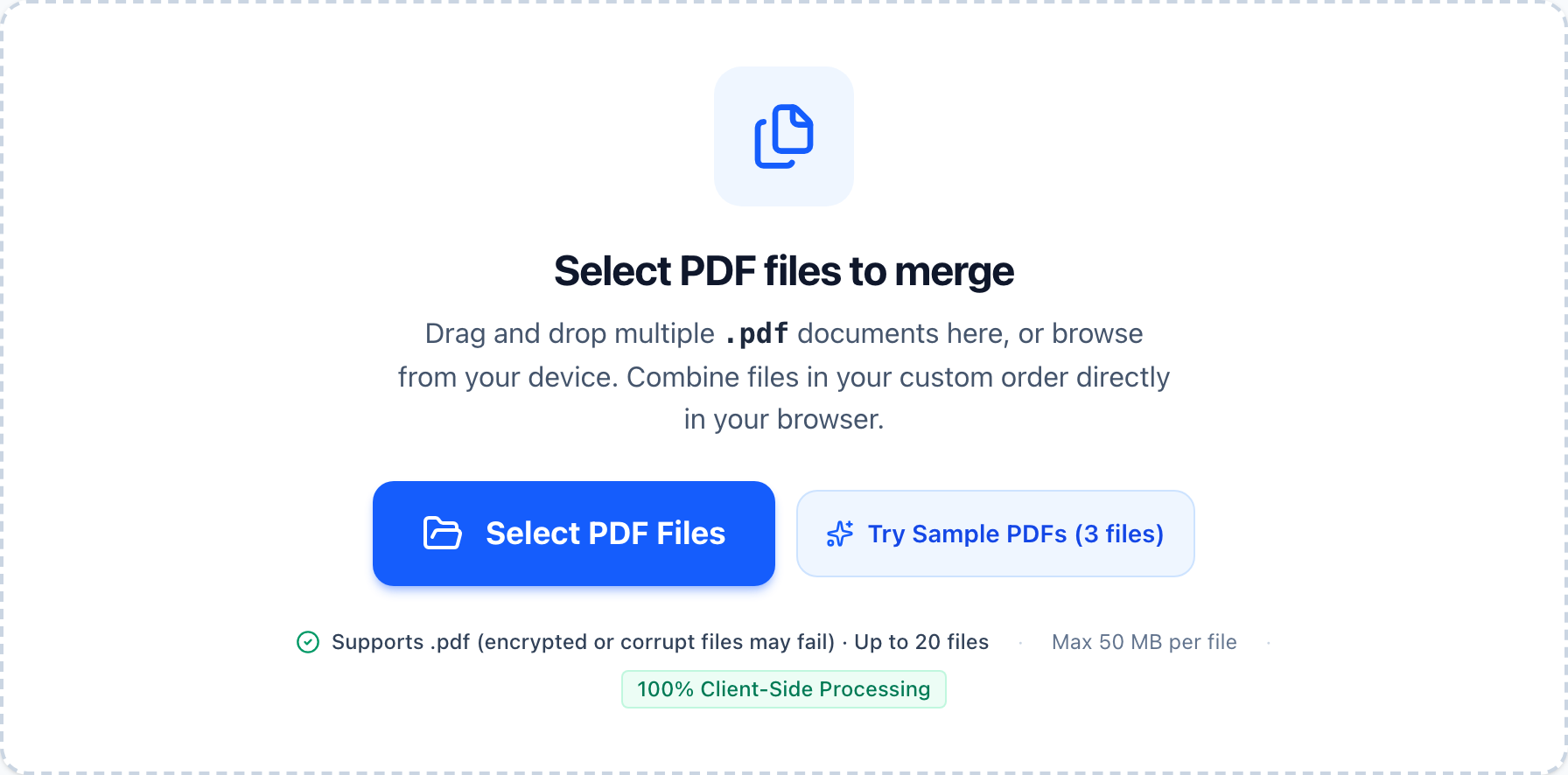
- Select PDF Documents: Navigate to the Merge PDF tool. Click inside the dashed dropzone or drag and drop your PDF files directly from your computer. You can select up to 20 files (up to 50 MB per file, or 150 MB total batch size).
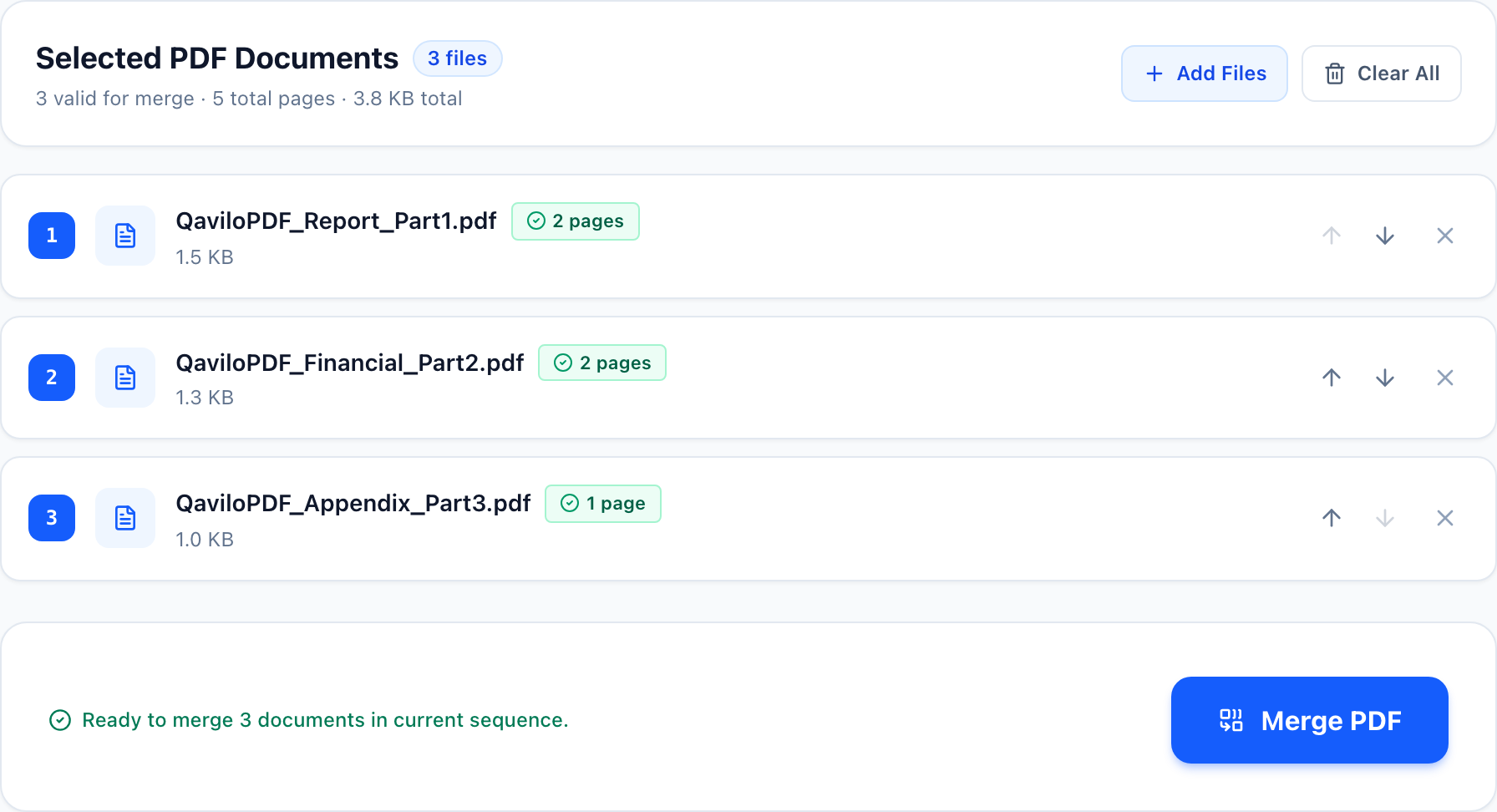
- Inspect Document Status: The tool instantly inspects each file locally. An emerald badge displays the page count for ready documents. If a file is password-protected, a red lock badge and inline "Unlock →" shortcut alert you to remove password encryption first.
- Arrange Documents in Order: Use the up and down arrow controls next to each document card to reorder files. A blue numbered badge (1, 2, 3...) displays the exact merge sequence.
- Execute the Merge: Once at least two valid documents are queued, click the "Merge PDF" button. The engine copies pages sequentially in browser memory without uploading bytes over the network.
- Download and Verify: When the merge completes, click "Download Merged PDF" to save the combined file. You can also click "Preview PDF" to inspect the combined pages inline before closing the tab.
How to Arrange PDF Files Before Merging
When you drop multiple files into a browser window, operating systems often deliver them in alphabetical or arbitrary order rather than your intended sequence. If you merge them without adjusting the queue, your recipient might encounter an appendix before your executive summary.
Consider a typical professional scenario: submitting an employment packet. A polished submission requires strict sequential order:
| Merge Position | Document Component | Page Count | Format |
|---|---|---|---|
| Position 1 | Cover Letter (Cover_Letter.pdf) | 1 page | A4 Portrait |
| Position 2 | Curriculum Vitae / Résumé (Resume_2026.pdf) | 2 pages | A4 Portrait |
| Position 3 | Work Samples / Portfolio (Portfolio_Cases.pdf) | 3 pages | US Letter Landscape |
| Result | Single Unified Application (Cover_Letter_merged.pdf) | 6 pages total | Sequential Multi-Page PDF |

In QaviloPDF, each document card features explicit "Move document up" and "Move document down" controls. As you click these arrows, the sequence badge immediately updates. If you accidentally add an unwanted file, click the "X" remove button on its card to take it out of the merge queue—or use "Clear All" to empty the whole list—without affecting your local disk.
Does Merging PDFs Affect Document Quality?
A common misconception is that merging PDFs re-encodes pages, leading to blurry text or degraded images. In reality, PDF merging and PDF compression are fundamentally different operations.
During PDF compression, embedded raster images are resampled and recompressed with lossy algorithms like JPEG to reduce file weight. In contrast, QaviloPDF's merge pipeline uses non-destructive page copying via pdf-lib:
- Vector Typography: Vector glyphs, Bézier spline curves, and font outlines in content streams (
TjandTJoperators) are copied directly into the new document object stream. Text remains crisp and selectable at any zoom level. - Embedded Raster Images: High-resolution photographs, technical charts, and scanned diagrams retain their original pixel dimensions and compression filters. They are not downsampled or re-encoded.
- Page Dimensions & Rotation: If your first document is A4 portrait (595 × 842 pt) and your second document is US Letter landscape (792 × 612 pt), each page retains its native
MediaBoxandRotateattributes without forced stretching.
Is It Safe to Merge Confidential PDFs Online?
Many traditional PDF websites require you to upload your files to remote cloud servers. Once transmitted, your confidential financial statements, medical records, or legal contracts reside on third-party infrastructure where they may be stored in temporary disk caches, processed by external worker nodes, or subjected to automated indexing. To see how client-side utilities compare against cloud PDF platforms on privacy, daily task caps, and file limits, review our comparison of the best free online PDF tools.
QaviloPDF was engineered around a client-first privacy architecture. When you merge documents on QaviloPDF:
- In-Memory Local Execution: PDF files are read directly into your browser’s memory as binary
ArrayBufferobjects using standard browser File APIs. - Zero Network Uploads: The merge pipeline constructs the combined PDF locally inside the browser. Your document contents and filenames are never sent to our backend or third-party servers.
- Lifecycle Reference Disposal: Clicking "Clear All" or starting a new merge immediately revokes temporary
blob:URLs viaURL.revokeObjectURL()and drops application references, allowing the browser’s JavaScript runtime to reclaim memory.
What Happens to Links, Forms, and Digital Signatures?
A PDF is more than a sequence of visual pages; it contains a complex tree of document-level dictionaries. When merging multiple independent documents into a single file, different PDF features behave differently:
| PDF Feature | Behavior in Merged Document | Technical Explanation |
|---|---|---|
| Selectable Text | Preserved (100%) | Font programs and character mappings are copied into the merged document dictionary. |
| Page Dimensions | Preserved (100%) | Each page retains its original MediaBox, CropBox, and rotation angles independently. |
| Annotations & Markup | Preserved | Page-level annotation arrays (highlights, notes, graphical shapes) remain bound to their respective pages. |
| Interactive Forms (AcroForms) | Static Visual Appearance (Non-Interactive) | Page visual appearances are preserved, but interactive form fields are not merged into a unified AcroForm dictionary. |
| Document Bookmarks (Outlines) | Excluded | Document-level outline trees (/Outlines) are omitted during page-by-page copying to avoid broken reference chains. |
| Cryptographic Signatures | Invalidated / Stripped | Digital certificates sign specific byte ranges. Creating a new merged PDF breaks the cryptographic hash. |
Common PDF Merging Problems and Solutions
- Document is Password-Protected: If an uploaded PDF is encrypted with an owner or user password,
pdf-libcannot read its object stream directly. The queue card displays a lock indicator and an "Unlock →" link to Unlock PDF (which supports standard AES-256 and RC4 PDFs; AES-128 encrypted files are not supported). - Mobile or Low-Memory Batch Crashes: Combining up to 20 large PDFs (up to 150 MB total) holds input buffers and output bytes in active browser memory. On memory-constrained phones or older tablets, merge documents in smaller batches (such as 4–5 files at a time), then combine the intermediate files.
- Unexpected Blank Pages in Output: Some reports include intentional blank separator pages for double-sided printing. Use Organize PDF after merging to delete unwanted blank pages.
- Total Batch Exceeds 150 MB: QaviloPDF enforces a 50 MB per-file ceiling and 150 MB cumulative queue cap to prevent browser memory exhaustion. Run image-heavy PDFs through Compress PDF before merging.

Ready to test this workflow on your document?
Combine up to 20 PDF documents locally in your browser. Reorder files with 1-click controls, preserve original image fidelity, and download your combined document instantly with zero remote file uploads.
Frequently Asked Questions
Does merging PDFs reduce text or image quality?
No. Unlike PDF compression, which downsamples images and reapplies lossy JPEG quantization, merging copies existing page content streams, fonts, and images directly into a new document. Vector typography remains razor-sharp and images retain their original resolution.
Are my confidential documents uploaded to a remote server when merging?
No. QaviloPDF executes the entire merge process locally inside your browser using client-side JavaScript. Your files are loaded into device memory and combined without transmitting document bytes or metadata to any external server.
How many PDF files can I merge at once in QaviloPDF?
You can merge up to 20 PDF files in a single session, with an individual file limit of 50 MB and a cumulative batch limit of 150 MB. These limits ensure fast performance and prevent browser memory exhaustion on mobile devices.
Can I rearrange or delete individual pages instead of entire documents?
The Merge PDF tool organizes documents as complete units. To rearrange, rotate, or delete individual pages within a combined document, open Organize PDF after merging.
Can I merge password-protected or encrypted PDF files?
Encrypted PDF files cannot be merged until decrypted. QaviloPDF flags locked files in the queue so you can open Unlock PDF first (supports standard AES-256 and RC4 password encryption; AES-128 encrypted PDFs are not supported).
Will internal hyperlinks and table of contents bookmarks still work after merging?
Standard page-level annotations and external web links are preserved. However, document-level bookmark outlines and internal cross-document links are typically omitted during merging to avoid broken reference chains.
Related Reading & Guides
How to Compress a PDF Without Losing Readability
Need to shrink a PDF for Gmail, Outlook, or an upload portal without turning text blurry? Learn the six technical causes of PDF bloat, exact email attachment ceilings accounting for MIME encoding overhead, and how to compress files privately in your browser.
articleHow to Split a PDF or Extract Specific Pages Without Losing Important Content
Need to isolate a single chapter, pull signed contract pages, or divide a multi-page report into manageable files? Learn the critical difference between splitting and extracting, avoid the physical index trap, understand the limits of virtual printing, and see how bookmarks, hyperlinks, and form fields behave during extraction.
comparisonBest Free Online PDF Tools
A practical, documentation-backed comparison of eight widely used online PDF suites—examining what is genuinely free, where daily caps or sign-in gates appear, how text editing and OCR behave, and whether files are processed in your browser or on remote servers.