How to Edit Existing Text in a PDF Without Changing the Layout
Need to fix a typo, update a date, or change a price in a PDF without shifting nearby paragraphs or breaking your alignment? Follow this practical step-by-step workflow to edit existing PDF text in your browser, preserve page geometry, and verify the exported file.
What Happens When You Edit Existing PDF Text
Unlike a word processor, a PDF stores each line or text run at fixed X/Y page coordinates. When you edit a single line in a PDF, surrounding paragraphs do not automatically reflow downward or sideways—which is actually helpful when your goal is to update a date, invoice total, or name without disturbing the rest of the page.
In QaviloPDF Edit PDF, existing-text edits run locally in your browser using a tiered strategy: for standard-encoded text streams (such as Helvetica, Times-Roman, or Courier), QaviloPDF performs a direct stream update at the original baseline coordinates. When a font is deeply subsetted or uses custom glyph mappings, the editor falls back to structural operator removal or a matched visual replacement using standard PDF fonts so the page still exports cleanly.
Step 1: Upload and Open Your PDF
- Open QaviloPDF Edit PDF in your browser. No account or software installation is required.
- Click "Choose PDF Document" or drag and drop your file (up to 50 MB) into the upload area. You can also click "Try Sample PDF" if you want to test the workflow before editing a real document.
- Wait a moment while the browser renders your pages and indexes native text positions locally on your device.
Step 2: Select Existing Text in Edit Text Mode
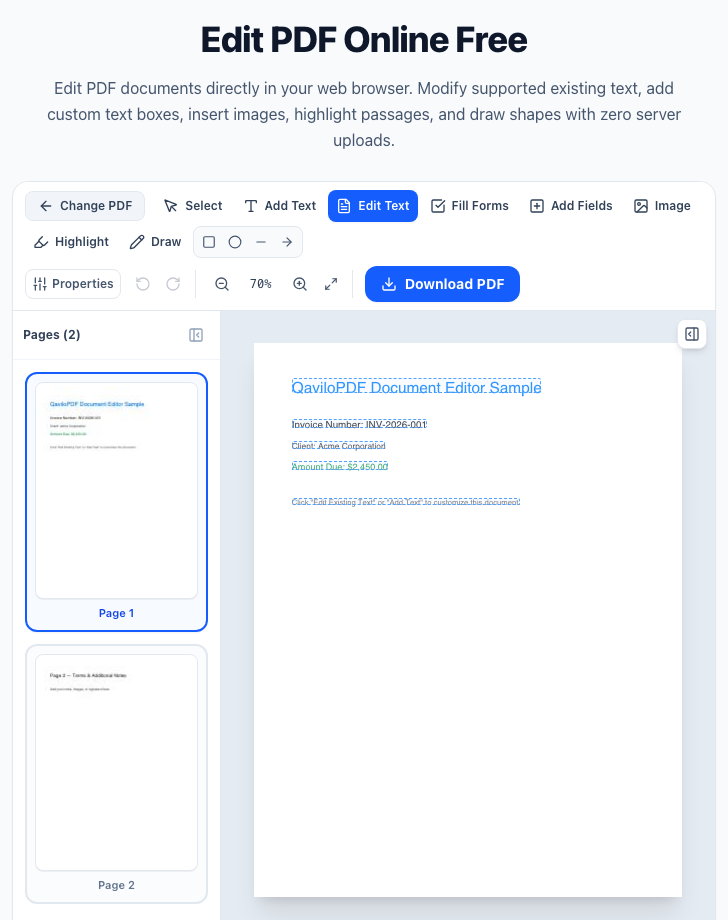
In the top editor toolbar, you will see two distinct text tools: "Add Text" (which places a brand-new text box anywhere on the page) and "Edit Text" (which highlights existing PDF text runs so you can replace them in place).
- Click the "Edit Text" button in the toolbar.
- Hover over the page to see detected existing text runs. Click the exact line or label you want to change (for example, "Invoice Date: November 10, 2026" or "Total Due: $450.00").
- Inspect the detected mode indicator: standard WinAnsi fonts show Direct Stream Edit with the matched font family (Helvetica, Times-Roman, or Courier).
Step 3: Replace or Modify Text Cleanly
Type your replacement wording in the editor field and apply the change. You can edit multiple independent text runs across the same page before exporting.
| Test Case | Original Text | Edited Text | Observed Result |
|---|---|---|---|
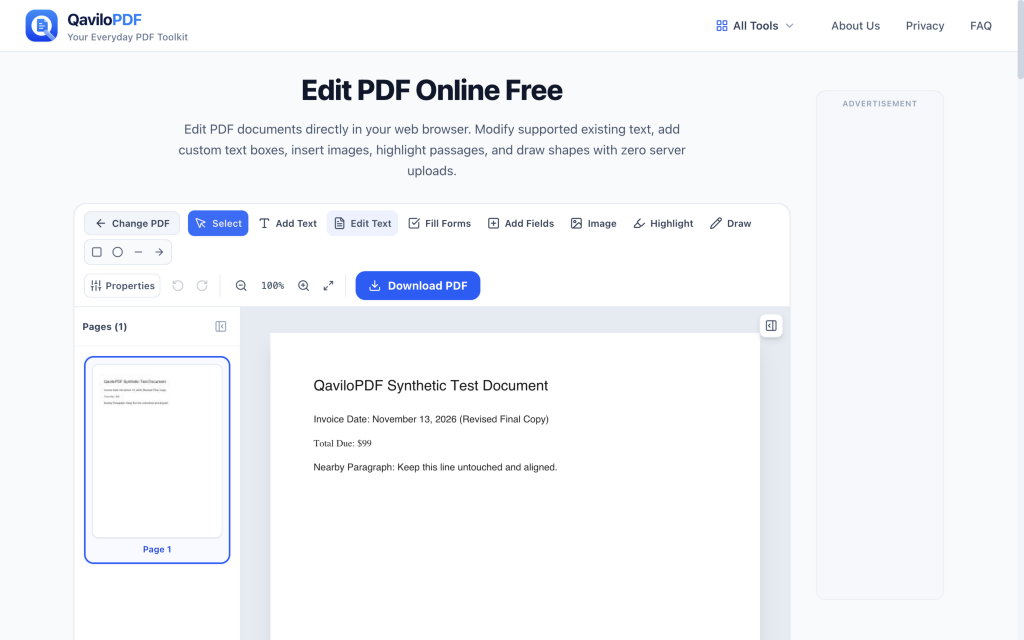
| Shorter replacement (Times-Roman) | Total Due: $450.00 | Total Due: $99 | Font preserved (Times-Roman); bounding width shrank cleanly with zero ghost glyphs. |
| Longer replacement (Helvetica) | Invoice Date: November 10, 2026 | Invoice Date: November 13, 2026 (Revised Final Copy) | Font preserved (Helvetica); expanded horizontally at the same baseline without shifting nearby lines. |
| Untouched adjacent line | Nearby Paragraph: Keep this line untouched and aligned. | (Unedited) | Exact X/Y coordinates (x=54, y=620) and alignment remained completely unchanged. |
How to Preserve Formatting and Avoid Overlap or Clipping
- Match character count when neighboring columns exist: If a value sits inside a narrow table cell or next to a right-hand label, keep the replacement string close to the original width so it does not collide with the adjacent column.
- Step down font size by 1–2 pt for longer strings: If you must insert a slightly longer phrase in a tight header or form box, reducing the font size slightly prevents horizontal overflow.
- Understand font handling in Edit Text vs. Add Text: When you modify existing text in Edit Text mode, QaviloPDF preserves standard PDF fonts when possible or automatically assigns the closest Standard 14 fallback family (Helvetica, Times Roman, or Courier; or Liberation Sans for non-WinAnsi Unicode)—there is no manual font dropdown inside Edit Text mode. If you want to choose a font family manually, use Add Text instead.
- Never use text edits to hide secrets: If you need to permanently remove confidential names, account numbers, or SSNs rather than update wording, use QaviloPDF Redact PDF. Its default Full Document Flattening mode rasterizes the entire PDF at 200 DPI with permanent black bars (or choose Selective Sanitization in the confirmation modal to rasterize only redacted pages).
Step 4: Download and Independently Verify the Edited PDF
Once your edits look aligned on the canvas, click "Download PDF" to export the updated document locally. Before sending an important contract or invoice, verify the downloaded file independently:
- Open the downloaded PDF in your browser or desktop PDF viewer and check line baselines and margins at 100% zoom.
- Run a Find search (Ctrl+F or Cmd+F) for both the old text and the new text to confirm the old wording is gone and the new wording is searchable.
- Reopen the downloaded PDF in QaviloPDF Edit PDF if you want to confirm that edited runs remain cleanly aligned and selectable.
Why Some PDFs Are Harder to Edit Than Others
Not every PDF behaves as cleanly as a standard-font invoice. Exported design files, older office printouts, and non-Latin documents often embed minimal font subsets or split single words across multiple kerning segments. If a font lacks an invertible character map, any browser editor must substitute a standard font (Helvetica, Times Roman, or Courier) for the edited run—which can look slightly different from a branded display typeface. For a deeper technical breakdown of glyph subsets and coordinate streams, read why editing PDF text is so difficult.
Troubleshooting & When a Different Workflow Is Necessary
| Symptom / Situation | Why It Happens | Recommended Fix |
|---|---|---|
| Text cannot be clicked in Edit Text mode | Page is a scanned image or outlined vector paths with no native text layer. | Use Add Text to place overlay text, or run QaviloPDF OCR PDF first to make the English scan searchable and copyable for extraction into a word processor (OCR does not turn a scan into editable vector paragraphs inside Edit Text mode). |
| Edited text looks slightly different in typeface | Original PDF used a subsetted or custom embedded font. | Edit Text automatically picks the closest Standard 14 fallback (Helvetica, Times Roman, or Courier) matching style/metrics and has no manual font picker. For manual font selection, insert a new text box via Add Text. |
| New wording overlaps the next column | Replacement string is wider than the original fixed coordinate slot. | Shorten the phrasing or reduce the font size by 1–2 pt. |
| Need to rewrite whole paragraphs or reflow pages | PDF format has no automatic line wrapping or pagination engine. | Edit the original Word/source file and convert to PDF with QaviloPDF Word to PDF. |
| File refuses to open for editing | PDF is password-encrypted. | Decrypt standard AES-256 or RC4 password-protected PDFs with your authorized password in QaviloPDF Unlock PDF first (AES-128 encrypted files are unsupported). |
If you are comparing how QaviloPDF handles existing-text editing, form creation, and free-tier limits alongside other web editors, see our comparison of the best free online PDF editors.
Ready to test this workflow on your document?
Modify existing text, add new text overlays, fill forms, or annotate PDFs up to 50 MB directly in your browser with zero server uploads.
Frequently Asked Questions
Will editing one line in a PDF shift the rest of the page layout?
No. Because PDFs position each text run at fixed coordinates, replacing a word or line leaves surrounding paragraphs, headings, and margins anchored in their exact positions—as long as your replacement text fits the available horizontal space.
What is the difference between "Edit Text" and "Add Text" in QaviloPDF?
"Edit Text" detects and replaces existing native PDF text runs in place, whereas "Add Text" inserts a brand-new text box on top of the page without modifying existing text streams.
Why did my edited text switch to Helvetica, Times Roman, or Courier?
When a PDF uses a custom or deeply subsetted font whose glyphs cannot be safely reused in the browser, QaviloPDF substitutes one of the three Standard 14 PDF font families (Helvetica, Times Roman, or Courier) for WinAnsi edits—or embeds Liberation Sans automatically if Unicode glyphs require TrueType embedding.
Can I edit existing text in a scanned PDF?
Not directly in Edit Text mode. Scanned PDFs are flat raster images without a native text stream. You can place new annotations over the scan with "Add Text" or "Draw", or use QaviloPDF OCR PDF to add a searchable, copyable text layer if you want to extract the wording and rebuild the document.
How do I make sure the old text is really gone after downloading?
Open the exported PDF and press Ctrl+F (or Cmd+F) to search for the old wording. For standard-encoded direct stream edits, the old text is replaced rather than merely covered. For permanently removing confidential text, always use QaviloPDF Redact PDF (defaults to 200 DPI Full Document Flattening across all pages, or optional Selective Sanitization for only redacted pages).
Are my PDFs uploaded to a server when I use Edit PDF?
No. QaviloPDF Edit PDF processes documents up to 50 MB locally in your browser using client-side JavaScript (pdf-lib, @pdf-lib/fontkit, and a PDF.js browser worker for previews), with zero server uploads or account registration.
Related Reading & Guides
Why Is Editing PDF Text So Difficult? Fonts, Layouts, and Common Problems Explained
Ever tried editing a single word in a PDF only for the text to overlap adjacent sentences, shift positions unpredictably, or appear in the wrong font? Discover why PDFs are digital printouts rather than flowing documents, how fixed coordinates and font subsetting complicate edits, and how modern in-browser editors navigate these technical constraints.
articleHow to Compress a PDF Without Losing Readability
Need to shrink a PDF for Gmail, Outlook, or an upload portal without turning text blurry? Learn the six technical causes of PDF bloat, exact email attachment ceilings accounting for MIME encoding overhead, and how to compress files privately in your browser.
articleHow to Merge PDF Files Privately and in the Correct Order
Need to combine multiple PDF documents into a single organized packet without sending confidential files to a remote cloud server? Learn how in-browser PDF merging works, how to arrange files in the correct sequence, what happens to vector typography and forms, and how to verify your final combined document.